
Units of Measure
Table of Contents
All the Stock Items are mainly purchased and sold on the basis of quantity. which in turn is measured by units. So, it is necessary to create the Units of Measure. We can define Units of Measure either simple or compound. For Instance simple units of measure are: nos., metres, kilograms, pieces etc.
Simple Units of Measure
- Go to Gateway of Tally screen > select Inventory Info >then select Units of Measure >and select the Create button . A small Unit Creation window will appear as shown in the figure below:

Units of Measure
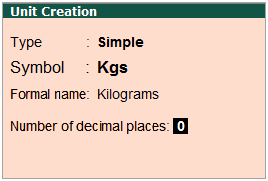
Type of Units is of two types.
- Simple
- Compound.
Simple units are the basic units of measurement eg. set, nos, pcs , and so on. Compound unit as the name suggests it is a combination of more than one simple units.
By default Tally.ERP 9 will show the Simple unit for creating the units of measure.
You can select the Compound Units by clicking on that field or by using SHIFT+TAB or or Backspace key [cursor will go to the previous field] .
- Define the Symbol of the unit, for instance, Nos. This symbol is used in all displays and printouts.
- Specify the Formal Name of the symbol, for instance, Numbers. This formal name is helpful during the consolidation of data of different companies, where the symbols might be the same but are assigned to different units.
- Number of decimal places field specifies the measure of fraction of the Units from 0 to 4.
Let us Consider, in Kilogram unit. 5.560 Kgs, the 5 denotes Kg and fractional part 560 is for grams which needs 3 decimal places to save the unit value.
PS: Tally.ERP9 is a comprehensive software by Tally Solutions, Simple easy to use, It is best suited for Accounting, Inventory and Payroll management and fully complaint with Goods and Services Tax.
Compound Unit of Measure
We can say a Compound Unit is a combination of two Simple Units. So, before creating a Compound Unit, we should have two Simple Units created beforehand.
- Go to Gateway of Tally screen > select Inventory Info >click on Units of Measure > click on Create. The simple Unit Creation screen is displayed . Now to go to the Type field Press SHIFT + TAB keys or Press Backspace Key.
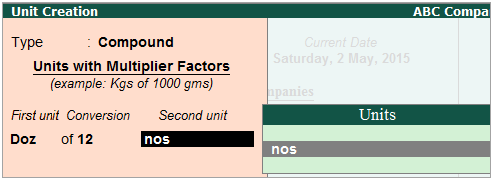
- From the drop down options select Compound from the Types of Units and press Enter. Now the Conversion fields gets displayed to create Compound units.

compound Units - Select the First unit from the Units List. In the picture above , Dozen is the First Unit.
- To specify the Conversion Factor, it would be 12 of the second unit.
- Specify the Second Unit from the Units List. In the above example, Numbers (nos) is the Second Unit of measure. Also called the Tail Unit.
- Press CTRL + A to Save the Compound Unit of Creation.
Display Units of Measure
The display button of Tally.ERP 9 does not allow to modify any information. but you can view the existing Units of Measure.
- Go to Gateway of Tally > select Inventory Info. > click on Units of Measure > and select Display.
- Now Select the Units of Measure you want to view from the available Units list.
Inventory Storage Using Godowns/Locations
In many businesses,inventory is being managed at several physical locations, such as shops, warehouses, , racks and so on. So in such cases, the Godowns/Locations capability of Tally.ERP 9 comes in play. Godowns keep the record of inventory moving from one location to other or from one manufacturing stage to other . Similarly, you can also track the stock moving in and out of your business premises for consignment sales or job work. Also You can always view stock reports for each godown and know about the movements of stock between godowns.
Create and Group Godowns: An individual godowns or multiple godowns can be created in a hierarchy in Tally.ERP 9 masters. Godowns/Locations can be used to create a hierarchy for different sections of a warehouse. Tally.ERP 9 helps you to see the details of the materials at the top level as well as at each individual level, in a hierarchy of godowns.
Use multiple godowns: After creating godowns, you are prompted to choose one or more godowns for every movement of inventory. Stock items can be put into a single godown or in multiple godowns.
Note: Tally.ERP 9 can summarise the details of each godown in the Godown/Location Summary report.
To create a Godown Click on Inventory Masters > Godowns to Create Godowns
To allocate stock items in godowns, create a godown first.
1. Press F11 key (Features) > in the Inventory Features > and change Maintain multiple Godowns to Yes .
2. Gateway of Tally > Inventory Info. > Godown > Single Godown > Create .
3. Name & alias : multiple aliases can be set for the godown name.
4. Under : Select Primary or Main Location.

- Accept the screen.
Create multiple Godowns/Locations
If you have stored your inventory in more than one location, in Tally.ERP 9 you can choose to create godowns one by one, or create multiple godowns from a single screen.
- Gateway of Tally > Inventory Info. > Godowns > Multiple Godowns > Create .
- Under Godown :
- If you select Under Godown > All Items , you will be prompted to select the parent godown for each godown name that you specify under the Name column.
- If you select any other godown, say Under Godown > Main Location , this godown is treated the parent godown for all the godowns you create.
Allocate stock items to Godowns/Locations
After creating a godown, stock items can be allocated to it.
- Open the Stock Item Allocation screen.
- To allocate the opening balance of your stock, in the Stock Item Alteration screen, select Opening Balance and press Enter .
- To allocate stock items during voucher entry, in the Voucher Creation screen, select the stock item and press Enter .
- In the Stock Item Allocation screen, provide the Quantity if UoM is defined for the item; otherwise, provide the Amount .
. The Opening Balance Quantity or Value specified in the stock item must be completely allocated among the selected godowns.
Alter, Display, and Delete Godowns/Locations
Like other masters, you can Alter , Display , or Delete godowns.
Transfer Inventory Between Godowns/Locations
Stock Journal is used to move stock items from one Godown/Location to another. In case you are into manufacturing or job work, Tally.ERP 9 provides the flexibility to use specific voucher entry modes of Stock Journal to record transfer of materials between godowns.
- Gateway of Tally > Inventory Vouchers > Alt + F7 (Stock Journal).
- Under Source (Consumption) , specify details of the stock items that you want to transfer.
- Select the stock item and the godown from where you want to transfer.
- Specify the Quantity here. Rate and Amount are auto-filled from the stock item. You can alter these values, as needed.
If you have not specified the Opening Balance (Quantity, Rate, and Amount) in the item master, you can enter only the Amount here.
- Under Destination (Production) , specify details of the stock items.
- Select the stock item and the destination godown. For inter-godown transfers, select the same stock item as in the Source .
As always, you can create stock items and godowns on the fly by pressing Alt + C .
- Provide Quantity , Rate , or Amount , as needed.
- Accept the voucher.
Printing of the stock journal can be configured to print the godown names and addresses in the vouchers. [sg_popup id=”256″ event=”inherit”][/sg_popup]
You may also like this: Create, Alter and Delete Ledgers in Tally.ERP9
Pingback: Create, Alter, Delete a Ledger in Tally.9 ERP - DigitalSanjiv
Pingback: How to Activate GST in Tally.ERP9 ? - DigitalSanjiv
Well done
nice